Field Ascend sends customer feedback forms from the job, the quote or the customer record: a readiness check before the visit, a five-star feedback request after it, a follow-up when a quote is declined. The customer gets a link by email or text, answers in their browser with no login, signs if the form asks, and the result lands back on the job as a rating and a signed PDF. A spreadsheet or a free form tool cannot tell you which job the answer belongs to, or send the next one on its own when the engineer marks the job complete.
Built for UK field service firms of any size: one van or forty. Everything below is live today.
Setup adds four starter forms the first time you open it. Edit the wording, add or remove questions, or build your own from a blank page. Each form has a kind, and the kind decides where it can be sent from and what happens when it comes back.
Pre-visit readiness check. Sent before a booked visit so the engineer arrives to a site that is ready: access, parking, permits, hazards, who to call on arrival. Signed by the customer. Can be attached to every job or to chosen job categories, so a new job shows it as "not sent yet" until someone sends it.
After the job. Short satisfaction feedback with a star rating, a 0 to 10 recommend score for NPS and a comment box. The email can carry five stars, so one tap records the rating and opens the rest of the form.
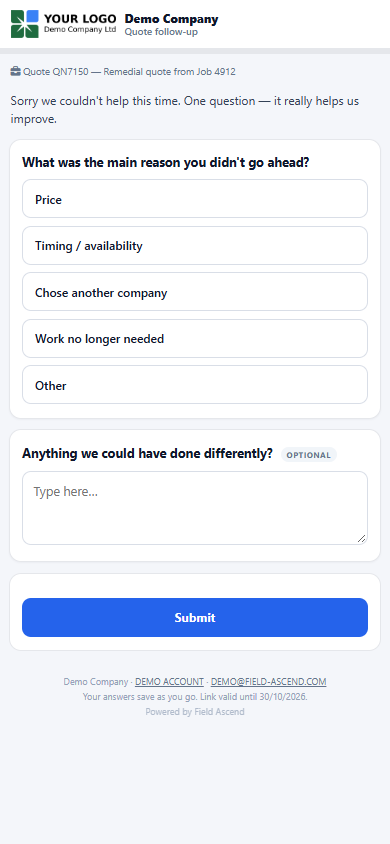
Quote follow-up. Sent when a quote is declined or goes quiet: why did we not win, and what could we have done differently. It lives on the quote, next to the quote itself.
General. Any form about a customer or a site rather than a job: a site induction acknowledgement, site rules a contact reads and signs, an annual account review.
Question types are the ones a trade business needs: yes/no with a not-applicable option, single and multiple choice, text, numbers with units, dates, photos from the phone, star or heart or face ratings, the recommend scale, and a declaration tick. A yes/no or a choice can reveal follow-up questions, one level deep. It is not a survey-logic engine with quotas or answer piping, and that is deliberate.
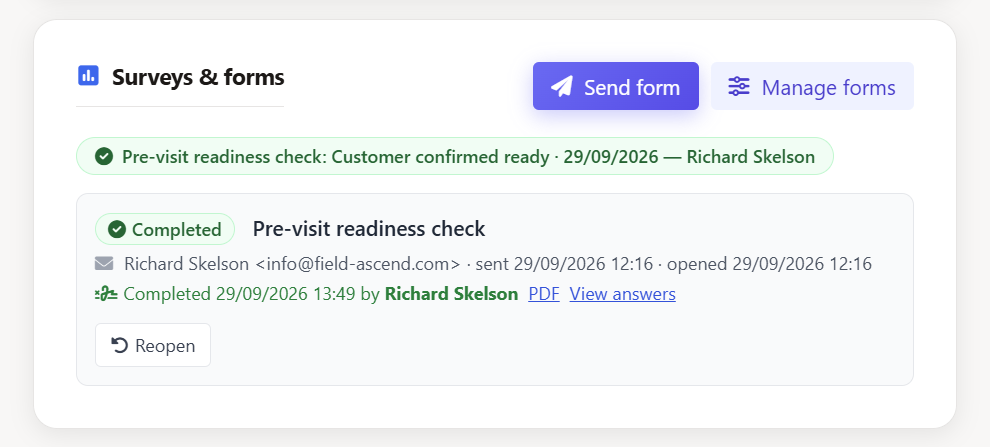
The customer confirms the things that cancel visits: someone will be on site, the area can be isolated, the permit is arranged, the van can park. They sign it. The job's Surveys card turns green with "Customer confirmed ready", and if the form is set to confirm the PPM visit, the visit is confirmed at the same time.
If the form allows it, the customer can press We are not ready instead and pick a reason you defined (wrong date, need to reschedule, access not arranged). The job shows a NOT READY banner with the reason, and the office alert goes out. It warns; it does not block. The booking stays where it is until a person moves it, because a customer pressing the wrong button should not empty an engineer's day.
Move the visit after the customer has confirmed and the form can go out again for the new date, superseding the old answer. Readiness forms are exempt from the cooldown that other forms have: every job needs its own.
The register's Readiness outstanding tile counts the forms still unanswered so the office can chase before the day, not after the engineer has driven there.
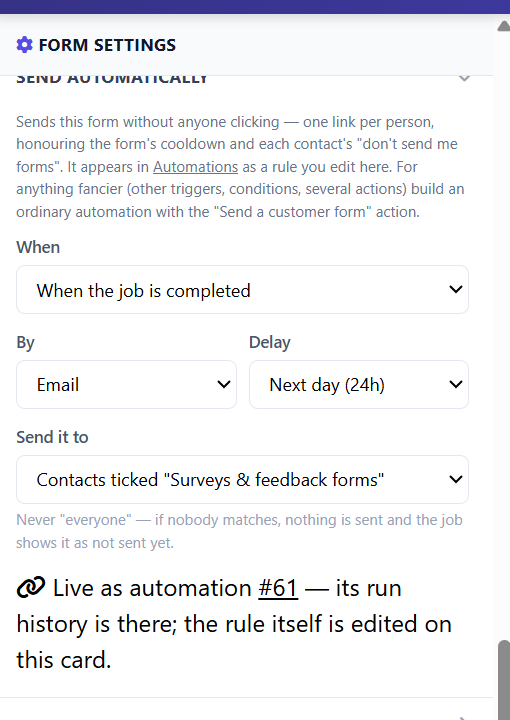
Yes, and this is the part a form tool bolted on from outside cannot do. Every form has a Send automatically card. Pick the moment: when the job is booked in, when it is completed, when it reaches a status you name, when a quote is emailed, or when a quote is declined. Pick email, text or both. Pick a delay: straight away, one hour, next day, up to a week. Pick who: contacts ticked "Surveys and feedback forms", the contacts ticked for the job's category, or the site's contacts. Save, and the rule appears on the Automations tab marked Managed by Surveys, with its own run history.
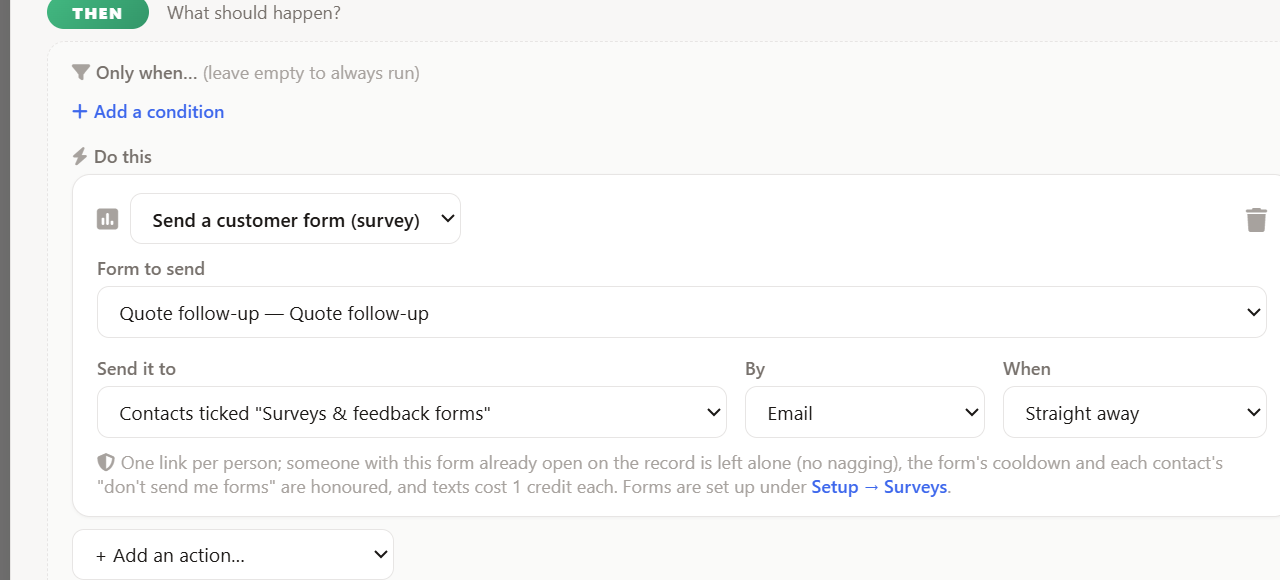
Anything more involved is an ordinary automation with the Send a customer form action, so you can add conditions: only for one job category, only when the invoice is over a value, only for customers on a contract.
Three rules keep this from becoming spam. One open link per person per job, so a rule that fires twice never sends twice and automations never send reminders. A per-form cooldown (default 30 days) so nobody is asked "how did we do?" on every job in a busy week. And an opt-out link in every email footer: a contact who opts out keeps getting your normal job emails, minus the form. Texts are billed per SMS segment, so a longer message can take more than one credit, and they need the SMS add-on.
The same forms ride inside the emails and texts you already send. Put the form block in your job-completed email template and the completion email carries the stars. The Email and Text dialogs on a job or quote have an "Include a form" row, and each recipient gets their own link, so two addresses mean two separate responses.
On the record they were about. A job's Surveys card lists every form sent about that job with its status: sent, opened, completed with the rating, declined, expired, cancelled. Quotes, customers and sites have the same card, and the customer's page adds tiles for that customer alone.
When a customer completes a form the status turns green and the rating shows on the row. A PDF is generated and added to the job's documents, named by the pattern you set in Setup. The customer can be emailed their signed copy. The answers can be copied into a job note so the engineer sees them in the app before the visit. The office alert Survey / form responses goes to whoever is on that stream in Notifications, plus any extra addresses on the form.
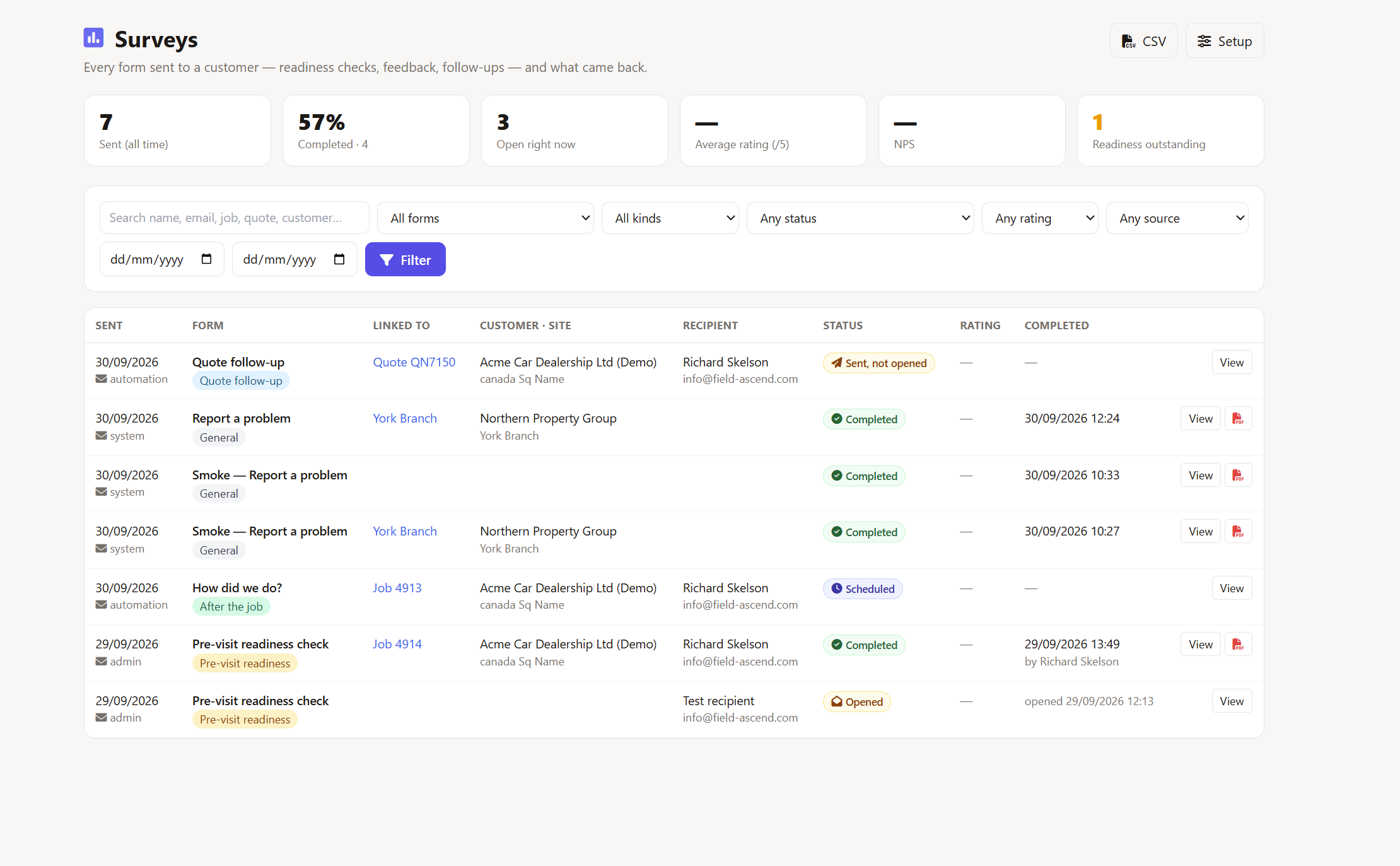
The Surveys register is the company-wide view: sent all time, completion rate, open right now, average rating out of five, NPS, readiness outstanding. Under the tiles a list shows low ratings (two stars or under) that nobody has followed up yet; a Followed up tick with the date clears each one. Filter by form, kind, status, rating or source (office, automation, reminder schedule, customer-initiated) and export the filtered list to CSV.
Every view, the signature, the time, the IP address and the device are recorded on the response's activity trail. Links expire after the number of days set on the form (30 by default); an expired link tells the customer so, and the office can Reopen or Resend it. A form can also be anonymous. At submit the name, email, signature and device details are removed, the register shows Anonymous, and the answers stay on that response.
Two limits worth knowing. The response PDF uses a default layout for now; a designer for it is on the roadmap. And thank-you links (a Google review, Checkatrade, your own site) are shown to the customer only when their rating meets the threshold you set: the product shows the link, it does not post reviews for anyone.
Yes. Public links are permanent, multi-use links you create under Customer Options. Print one as a QR sticker on the plant room door or the lift car, or attach it to the request widget on your website. A scan opens the form with your branding; nothing is saved until the person presses Start, and a bot check runs first. Each submission raises a ticket in your ticket inbox with the customer, site and equipment already attached, and shows in the register as customer-initiated.
Each link has its own copy list, so the property owner for House A and the managing agent for House B each get their own copies. Photos become ticket documents. A link dies when you revoke it; reprinting means a new link.
These request forms map their questions onto the ticket (subject, details, the reporter's name and phone, category, priority), and anything not mapped is still written onto the ticket under "Other answers".
The difference between this and a stand-alone customer satisfaction survey tool is where the data sits. The rating is on the job the engineer did, next to the job sheet and the invoice. The readiness answer is on the visit it protects. The declined-quote reason is on the quote. The Surveys register is where you look across them: filter the list and export it to CSV.
There is no customer feedback app for your customers to install and no account for them to remember. The only app involved is yours: the engineer sees the readiness answers in the job note before setting off.
No. Each person gets their own link by email or text. The form opens in the phone's browser with your name and logo at the top, one question card at a time, and a signature pad if the form asks for one. Their answers save as they go, and they get a thank-you page with their PDF copy.
Yes. Each form has a Send automatically card: when the job is booked in, when it is completed, when it reaches a status you pick, or when a quote is emailed or declined. You choose email, text or both, who it goes to, and a delay (straight away, next day, up to a week). The rule appears in Automations marked Managed by Surveys, and anything more involved can be built there with the Send a customer form action.
One open link per person per job: an automation that fires twice never sends twice. Each form has a cooldown (default 30 days) so the same person is not asked the same feedback question on every job, reminders are capped per form, and every email carries an opt-out link. An opted-out contact still gets your normal emails, just without the form.
A readiness form can offer a not-ready button with reasons you define. The job shows a NOT READY banner with the reason, and the office is notified. It warns rather than blocks: the booking stays where it is until someone moves it. If the visit is rescheduled after the customer confirmed, the form can go out again for the new date.
Onto the job, quote, customer or site the form was sent about, and into the Surveys register with its rating. A signed PDF is generated and added to the job's documents, the customer can be emailed their copy, the answers can be copied into a job note for the engineer, and the office alert stream tells whoever is on it. Low ratings sit in a follow-up list until someone ticks Followed up.
Yes. Public links are permanent multi-use links you print as a QR sticker on site or embed in your website's request widget. A scan opens the form, a bot check runs before anything is saved, and each submission raises a ticket in your inbox with the site and equipment already attached. Copies go to the addresses on that link, such as the property owner.
It is a form builder for the forms a field service business sends: yes/no, choices, text, numbers, dates, photos, star or heart ratings, a 0 to 10 recommend scale and a declaration tick, with one level of branching off a yes/no or a choice. It is not a general survey-logic engine with quotas or piping, and the response PDF uses a default layout for now.
Switch the module on in Setup, edit the starter form to match how your engineers actually get on site, and send it from one job. Automatic sending can wait until the questions are right.
Start your free trial