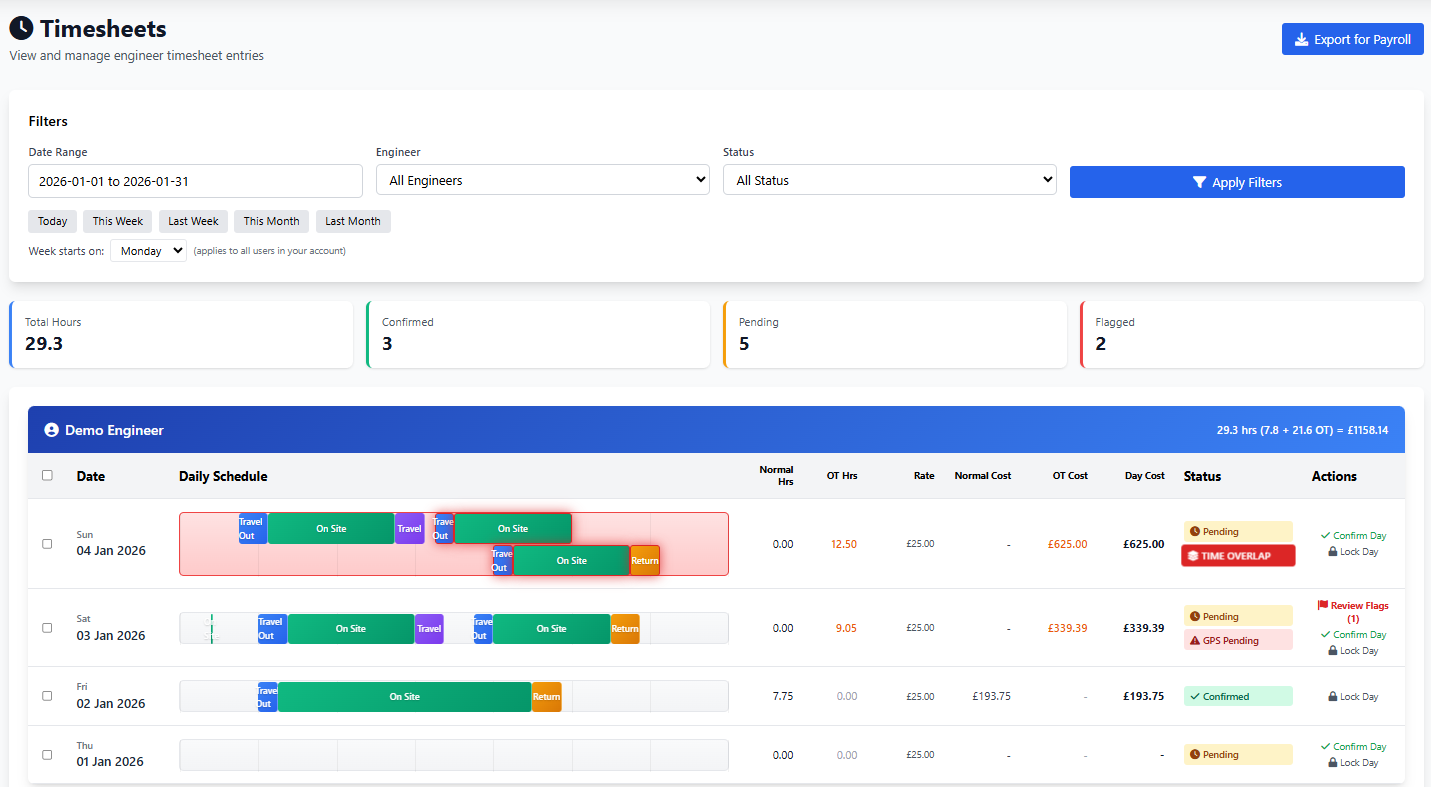
Stop chasing paper timesheets and manual spreadsheets. Field Ascend captures engineer hours automatically from job actions, displays them as visual Gantt charts, validates times with GPS coordinates, calculates overtime across multiple rate tiers, and exports everything ready for payroll.
Built for UK field service businesses who need accurate, auditable time tracking without the admin overhead.
30-day free trial · Full access to all features
See how Field Ascend turns engineer job time, staff and admin hours, non-job events, GPS audit flags, confirmations and payroll export into one connected timesheet workflow.
This walkthrough shows the office review process from pending and confirmed rows through to GPS exception review and payroll export.
Traditional timesheets are walls of numbers. Field Ascend transforms time data into visual Gantt charts that show exactly how engineers spent their day - travel, onsite work, and return journeys colour-coded on a timeline.
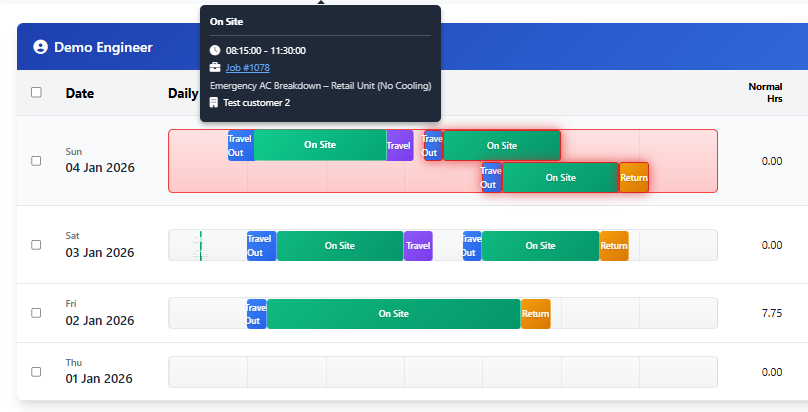
Each day displays as a horizontal timeline from 6am to 8pm. Segments show:
Hover over any segment to see exact times, job number, customer name, and whether it's a two-person job. Managers can spot problems instantly - gaps, overlaps, or unusually long travel times stand out visually.
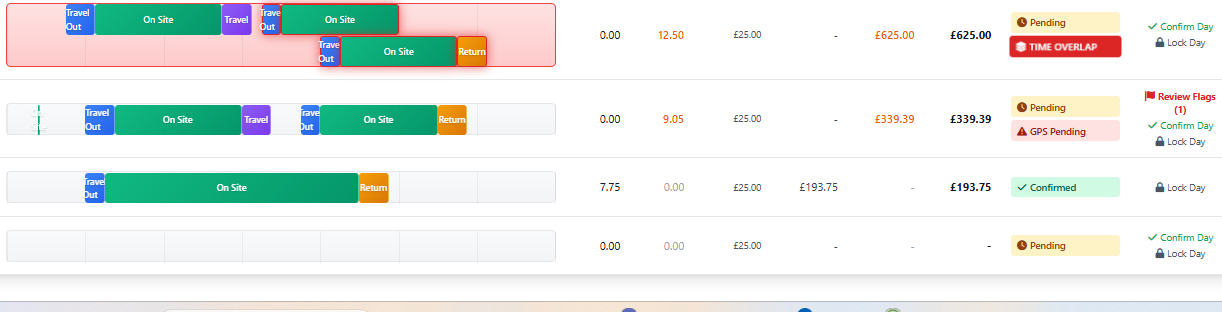
When an engineer has multiple jobs on the same day, Field Ascend automatically checks for time conflicts. If job times overlap (impossible to be in two places at once), the system:
No more accidentally paying twice for the same hour or missing errors that slip through in spreadsheet-based systems.
GPS timesheet verification doesn't mean you don't trust your engineers - it means you have evidence when disputes arise and protection against the rare bad actor. Field Ascend captures location automatically without adding friction for honest workers. Combined with what3words integration, you can pinpoint exact job locations for accurate verification.
When engineers tap Start Travel, Arrive, or Complete in the mobile app, their GPS coordinates are captured silently in the background. The system then:
Engineers aren't blocked from logging time - Field Ascend flags issues for human review, not automated rejection. Most flags have innocent explanations (GPS drift, nearby coffee stop, job site address wrong in system).
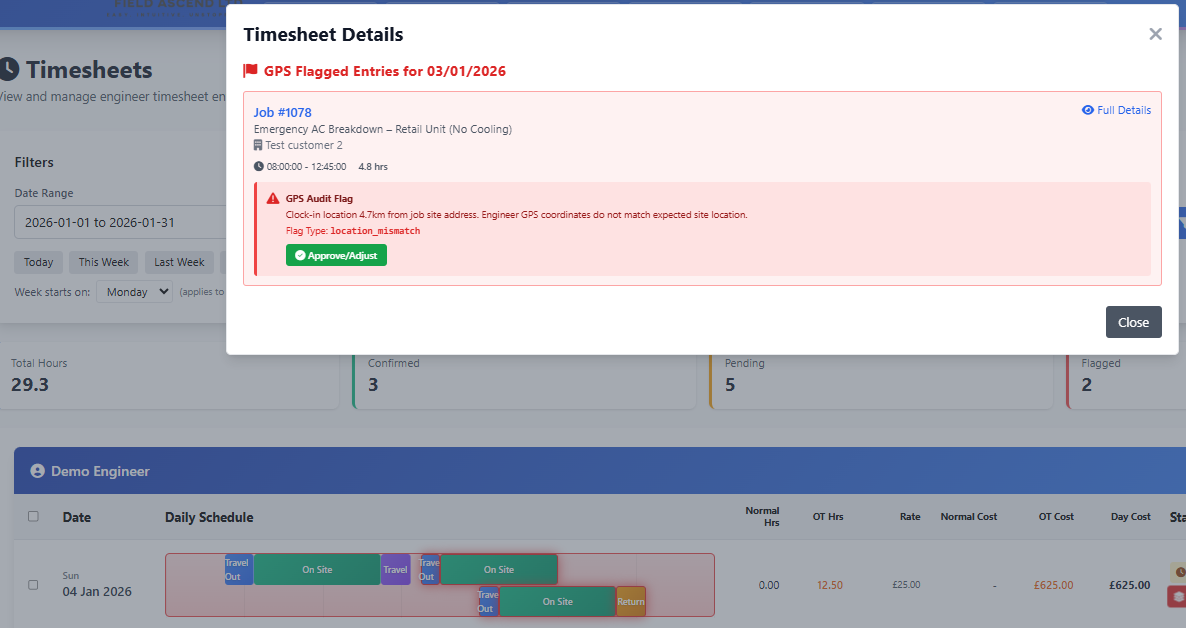
GPS-flagged timesheets appear with a red GPS Pending badge. Clicking Review Flags opens a modal showing:
Once reviewed, the badge changes to GPS Reviewed (green), and the entry can proceed to payroll with a full audit trail of who approved it and why.
UK payroll often involves complex overtime rules - normal hours, time-and-a-half, double time, weekend rates, and bank holiday premiums. Field Ascend calculates it all automatically based on rules you configure per engineer.
Pay rules live on each person's Payroll page. Every new dial starts off, so nobody's pay changes until you turn a rule on.
Set a threshold (e.g., 8 hours). Hours above threshold calculate at OT rate (e.g., 1.5x). Optional second threshold triggers double time (2x). Field Ascend handles all three tiers automatically: normal → OT → double time. Period Overtime can sit beside this if you also need a weekly or monthly cap.
Configure separate multipliers for Saturday and Sunday work. When an engineer works on a weekend, all hours that day apply the weekend rate - no manual overrides needed.
Bank holidays automatically apply the bank holiday multiplier (e.g., 2x). The system respects regional differences (England, Scotland, NI, Ireland) based on your tenant settings.
Different engineers can have different hourly rates and overtime rules via Staff Profiles. Apprentices, senior engineers, and contractors all calculate correctly without manual intervention. New rules live on each person's Payroll page.
Every day shows: Normal Hours, OT Hours, Normal Cost, OT Cost, and Day Total. Managers see exactly where payroll costs come from - no surprises at month end.
Each engineer's table header shows their total hours, split into normal + overtime, with currency-formatted costs. Perfect for quick payroll reviews before export.
Pay overtime after N hours across a week, a fortnight, 4 weeks or a month. Use it on its own, or next to Daily Overtime when a weekly cap still matters after the day has already gone into time-and-a-half.
Decide whether travel is paid. Exempt it from daily overtime, period overtime, double time, weekend and bank holiday rates, or time-band premiums. Travel can count towards the overtime clock, or not. One tick covers travel paid at basic, never overtime.
Price a clock window as a multiplier, a fixed £ per hour, or extra £ per hour on top of basic. Consecutive-day premiums are available too. When Stack Rates is on, multipliers multiply: 1.5 × 1.5 is 2.25x, not 1.5x twice.
Round paid time to 5, 6, 10 or 15 minutes, or always in the employee's favour. Deduct lunch only when the day exceeds N hours. Pay mileage after a number of free miles. People on a company vehicle get none.
Hover any overtime figure or total on Timesheets. You get the pricing for that day, one line per rule. The staff portal and staff reports use the same numbers as the office.
Timesheets shows how the day was priced, one line per rule. A person with nothing configured gets a No pay rules badge instead of a silent £0. Days you have adjusted are labelled Payroll:.
Setup → Payroll Settings stores the tenant Pay period. Timesheets and the export then offer This pay period and Last pay period. In Accounts Settings → Labour Cost, set Cost basis to Payroll engine and job labour cost becomes what payroll pays, times that person's On-cost multiplier. Quotes can carry a Role. Nothing moves until you switch the basis.
Build the CSV layout your payroll software or bureau expects once, save it as a profile, then select it on every future payroll run. Your reviewed engineer, staff, holiday, absence and adjustment data stays connected to the same export workflow. Each pay code can have its own column. Saved templates appear as one-click download tiles.

Don't click through hundreds of entries one by one. Field Ascend lets you select entire days, entire engineers, or arbitrary ranges - then confirm, lock, or approve in bulk.
Mark selected timesheets as reviewed and accurate. Confirmed entries show a green badge and are ready for payroll export.
Prevent engineers from amending locked entries. Use this after payroll has been processed to maintain an audit trail.
One-click action to confirm accuracy AND lock against future changes. Perfect for end-of-week timesheet sign-off.
Made a mistake? The last bulk action can be undone immediately. No more scrambling to fix accidental locks.
Click one day, hold Shift, click another - all days between are selected. Standard desktop behaviour that makes bulk selection fast.
Always know how many entries you have selected before clicking an action. The bulk actions bar shows "X selected" in real-time.
Engineers don't fill out timesheets - they just do their job. Times are captured automatically from job actions in the Field Ascend mobile app.
Each tap captures the time and GPS coordinates. The data syncs to the office system automatically - or queues for sync if there's no signal (true offline-first architecture).
Timesheets don't exist in isolation. Field Ascend connects time data with jobs, customers, invoicing, and reporting for a complete picture of your field operations.
Every timesheet entry is linked to a job number. Click through to see full job details, work done notes, materials used, and customer information.
Hours sit on the same person record as training, certificates and the printable card from staff photo ID card software, so a site manager can check who turned up and what they are qualified for.
Timesheet data feeds into dashboards showing engineer utilisation, overtime trends, and labour costs over time. Spot patterns and optimise scheduling.
Labour hours flow through to invoicing. Time-and-materials jobs automatically calculate labour charges based on recorded hours and rates.
The visual planner shows scheduled vs actual times. Compare planned job durations with real time spent for better future estimates.
Approved hours feed payroll preparation inside the wider HR and staff management module, alongside leave, absence, training and performance records for the same people.
GPS timesheet software automatically captures location data when engineers clock in and out of jobs. This verifies they were actually at the job site, prevents time fraud, and provides audit evidence for disputed timesheets. Field Ascend flags suspicious entries for manager review rather than blocking engineers.
Field Ascend displays each engineer's day as a visual timeline showing travel to site (blue), time on site (green), and return journey (orange/purple). Multiple jobs stack vertically if they overlap. Managers can see at a glance how engineers spent their day without reading through raw time entries.
Yes. Field Ascend supports multi-tier overtime calculations including: normal hours up to a threshold, overtime at 1.5x after the threshold, double time after a second threshold, Saturday rates, Sunday rates, and bank holiday rates. All calculations happen automatically based on rules you configure per engineer.
Yes. Export Excel, CSV or PDF for ad hoc reporting, or save a payroll profile for repeat CSV imports. Profiles control the roll-up, column order, custom headers, fixed values, delimiter, date format and decimals, with starter layouts for Sage 50, BrightPay, QuickBooks Time and generic payroll files.
Engineers don't need to manually fill in timesheets. Times are captured automatically when they tap 'Start Travel', 'Arrive', and 'Complete' in the mobile app. GPS coordinates are recorded at each action. Everything syncs to the office system in real-time or when signal returns (offline-first).
Admins can amend timesheet entries with a full audit trail. The system records who made the change, when, and the reason. Engineers can request amendments via the app. GPS-flagged entries require manager review before approval, ensuring accountability while allowing legitimate corrections.
No. Pay rules live on each person's Payroll page. Period overtime, travel exemptions, time-of-day bands, rounding, lunch, mileage and the rest start off. Nothing changes until you turn a dial on. Job labour cost also stays as it is until you set Cost basis to Payroll engine in Accounts Settings → Labour Cost.
Start your 30-day free trial with full access to all features including GPS-verified timesheets and payroll export.
Start Your Free Trial